Unidata IDV Workshop for version 6.2u2 > Accessing and Displaying Data > Color tables

3.4.0 Introduction to the Color Table Editor
- Open up the Color Table Editor from the
menu.
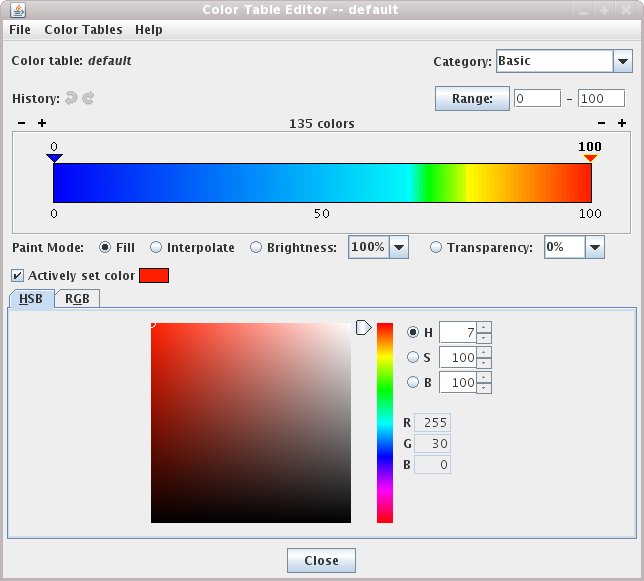
- You should see something like this (well, plus a Brightness field):
The Color Table Editor consists of:
- A set of command menus: ,
and .
- A color bar which shows the currently selected color table.
- A set of breakpoints that allow you to manipulate the color
bar.
(More about breakpoints)

- A color chooser which allows you to select a color.
- A set of paint mode items.
- History buttons that allow you to undo and redo changes.
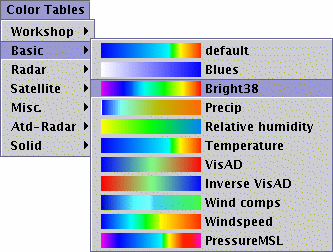
- First, we want to select a color table.
- Select the menu:
- Select .
- We don't want to change this particular color table so let's make a copy
of it by saving the currently viewed color table under a new name.
- Select the menu item.
- Enter the name for the new color table: "test1".
- Now we'll play around a little changing the colors through direct manipulation.
Notice when you mouse over the color bar the cursor changes to a paint brush. You "paint" with the selected color and paint mode.
- Click the
Fill paint mode button. You can select a color to
fill with from the Color Chooser at the bottom of the window.
- Click and drag in the color bar.
- Try changing colors in the color chooser.
Note - with the "Actively set color" button checked on the color below the
selected breakpoint will be changed. Click on a breakpoint to select it and change the color.
- Click the
Interpolate paint mode button and paint a bit.
- Click the
Brightness paint mode button and change the
brightness to 50%.
- Click the
Transparency paint mode button, select 50%
transparency
from Transparency menu.
- Click on the
History back and forward arrows to undo/redo
any changes you make.
- Click the
+ and - signs above the color
bar to change the number of color slots in the color table.
- Let's start fresh.
- Select the menu item. This deletes the currently
viewed color table.
- You should be viewing the initial color table.
- Select the menu item
and enter the name for a new color table: "test1".
- Now we'll change the colors through the menu.
- Add a new breakpoint.
- Right click in the middle of the color bar to bring up the
menu:
- Select .
- You should have a color bar that looks something like:
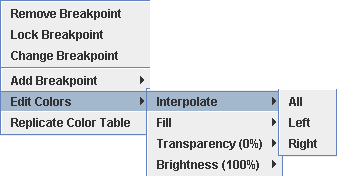
- Right click on the new breakpoint and we will get a different
menu:
- Select .
- Select .
- etc.
- Let's get back to the beginning.
- Select the menu item. This deletes the currently
viewed color table.
Unidata IDV Workshop for version 6.2u2 > Accessing and Displaying Data > Color tables